# EOS-CXP-Movimientos-Documentos-Documentos-sin-ingreso-en-CXP

<span style="font-size: 12pt; font-family: arial, helvetica, sans-serif;">Ingresar a CXP =&gt; Documentos.</span>

<span style="font-size: 12pt; font-family: arial, helvetica, sans-serif;"></span>

<span style="font-size: 12pt; font-family: arial, helvetica, sans-serif;">Seleccione del menú de botones ==&gt; **Opciones ==&gt; Documentos sin ingreso en CXP.**</span>

![](https://ayuda.cronuserp.com/uploads/images/migrated/2.png)<span style="font-size: 12pt; font-family: arial, helvetica, sans-serif;"></span>

<span style="font-size: 12pt; font-family: arial, helvetica, sans-serif;">Después de esto se abrirá una pantalla donde se podrán seleccionar las facturas que se quieren agregar al módulo de CXP.</span>

![](https://ayuda.cronuserp.com/uploads/images/migrated/3.png)[![Wiki7.png](https://ayuda.cronuserp.com/uploads/images/gallery/2025-08/scaled-1680-/wiki7.png)](https://ayuda.cronuserp.com/uploads/images/gallery/2025-08/wiki7.png)<span style="font-size: 12pt; font-family: arial, helvetica, sans-serif;"></span>

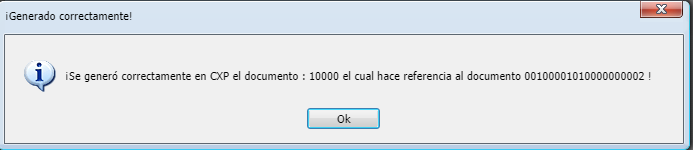
<span style="font-size: 12pt; font-family: arial, helvetica, sans-serif;">Para finalizar y agregar el documento damos click al botón **"+",** y nos aparecerá un mensaje donde nos informa el estado de la transacción.</span>

<span style="font-size: 12pt; font-family: arial, helvetica, sans-serif;"></span>